
Read business email in a browser
Use Webmail to read and send messages from a domain mailbox without installing an email application.
Use Webmail to read and send messages from a domain mailbox without installing an email application.
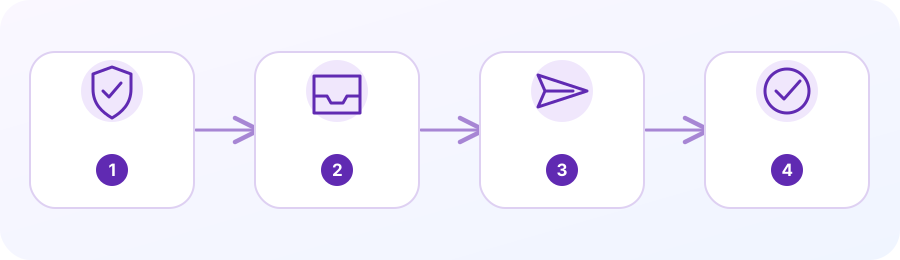
1. Confirm the mailbox exists
A mailbox must be set up for the domain first. If necessary, use the Email Accounts guide.
2. Open Webmail securely
Use the Webmail link supplied by your provider, the Check Email action in cPanel, or an HTTPS webmail login configured for your domain.
3. Sign in to your own mailbox
Enter the full email address and mailbox password into the verified secure login page. Never share these credentials with a chat assistant.
4. Open your inbox
Choose the available webmail client if prompted. You can read, reply and compose messages in the browser.
5. Review settings and storage
Check any mailbox preferences, spam folders and quotas provided. If mail is missing, test both sending and receiving and then use the troubleshooting guide.
Open Webmail securely
Webmail lets you read a mailbox in a browser without configuring a mail app. Use the Check Email action beside the correct mailbox in Email Accounts, the host’s customer portal, or the secure Webmail address supplied by the provider. cPanel commonly serves Webmail over HTTPS on port 2096, but providers may use a branded URL or proxy; use their confirmed address instead of guessing.
Sign in with the mailbox credentials and the login format shown by the provider. Do not use your cPanel password unless it is also deliberately the mailbox password. On a shared device, use a private window, do not save the password, sign out and close the browser when finished.
Learn the inbox and compose a message
The host may offer Roundcube or another Webmail application. Choose the application shown in your account. Open Inbox to check new mail, use the search box to locate a known message, and check Spam/Junk if an expected message is missing. The exact buttons can differ by application, but folder names and message actions are usually visible in the sidebar or toolbar.
To test sending, compose a short message to an address you control outside the same domain. Check the recipient spelling, subject and attachment before sending. Then check the recipient inbox and spam folder. A message in Sent proves that the client accepted it; it does not prove that the recipient’s server delivered it.
Separate incoming and outgoing problems
If mail does not arrive, test from a separate external address and record the send time and any bounce message. Check the mailbox spelling, Inbox and Spam/Junk, mailbox quota and whether the domain’s MX records point to the intended mail service. A Webmail login can work even when public MX records are pointed elsewhere.
If sending fails, read the exact error and test a small message without an attachment. Check whether the account is restricted or over quota. Ask the provider to review mail delivery logs and DNS authentication when needed. Do not publish a message containing private customer information as a troubleshooting example.
Protect the mailbox
Use a unique mailbox password and change it in the hosting control panel if you suspect another device has access. Removing the account from a device may stop that device from checking mail, but changing the password is the safer choice when access may be compromised. Never share a password or one-time code in website chat or a public support forum.
When a mailbox reaches its storage limit, messages may stop arriving or sending. Check Email Disk Usage and remove only messages you have confirmed can be deleted. Archive important mail before cleanup and check retention requirements for the business. Avoid selecting permanent or bulk deletion options without confirming which account and folder are active.
Questions people often ask
Why can I log in but still not receive mail?
Webmail access tests the mailbox, while delivery also depends on domain mail routing, MX records, quota and the sender’s result. Test from another provider and check for a bounce.
Does a message in Sent prove delivery?
No. It usually means the mail application accepted the message. Check the destination inbox or spam folder and review any bounce or provider delivery log.
Planning a business service? Here is a relevant next step.
Compare business email plans →Official cPanel references (third-party documentation):