
Website files & backups
Website files, backups and disk space are separate concerns. Check which restoration options your hosting provider actually offers before editing a live site.
Website files, backups and disk space are separate concerns. Check which restoration options your hosting provider actually offers before editing a live site.
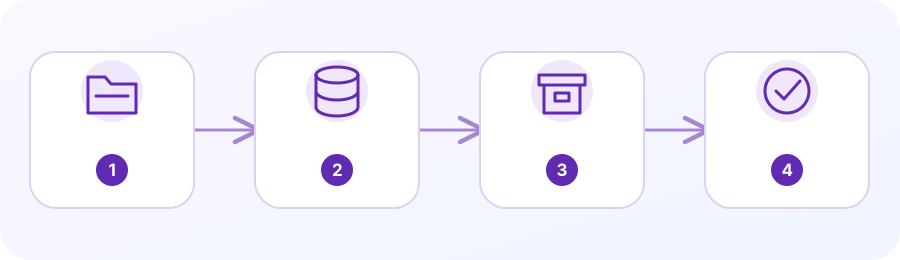
1. Locate file tools
Open the Files area. Look for File Manager, Disk Usage and any Backup or Backup Wizard features available to your account.
2. Identify the website folder
For the primary site, public_html is often the public document root, but add-on domains may use another directory. Check the Domains settings before changing files.
3. Check storage use
Use Disk Usage to locate large folders. Email, website backups and web assets can all consume capacity; avoid deleting unfamiliar system files.
4. Download a verified backup
Use the backup facilities your provider enables. A website backup may need both files and a database export. Confirm the archive can be restored before making major changes.
5. Restore cautiously
Confirm what a restore will overwrite, including recent enquiries, orders or content. Ask for help before restoring a live business site.
Choose the right backup scope
A website may contain public files, a database, email, DNS settings and application configuration. A File Manager download covers only the files you select. It will not automatically capture a database, mailbox, DNS zone or an external service. Before a major change, list the parts your site uses and check which of them are included in the provider’s backup service.
In cPanel, the Backup or Backup Wizard features may be enabled or disabled by the host. Partial backups can help download or restore one component; a full account archive can contain more account data but may not be directly restorable from the cPanel interface. Ask the provider what is included, how long backups are retained and who can perform a full restore.
Create and store a usable copy
Use the Backup interface or the provider’s documented process. If you download files manually, include hidden configuration files when appropriate and export the database separately using the approved database tool. Use a date and site name in the archive filename, and store a copy on a different device or approved remote location rather than only in the website’s public folder.
Check that the download completed and that the archive can be opened. A backup that has never been checked is only an unverified copy. Keep the original archive unchanged; if you need to edit or extract it, work from a second copy. Do not place unprotected private backups where a visitor could download them from the website.
Restore with a plan
Before restoring, identify exactly which files, database or account components will be replaced and which newer content could be lost. A rollback can remove customer enquiries, orders, email or edits made after the backup date. For a business site, choose a quiet maintenance window and make a fresh copy of the current state before testing an older restore.
A full account archive may require the hosting provider or server administrator to restore it. If you are restoring a partial file backup, verify the destination folder and extract only the intended paths. For a database, confirm the target database and whether the import replaces or merges existing records; request provider assistance if the result is unclear.
Test the backup and monitor capacity
Whenever possible, restore a copy to a staging location and test the home page, forms, images, links, database-backed features and email flows. Confirm the recovered site uses the expected domain and does not send live notifications from a test environment. A restore is successful only when the relevant site functions work, not just when files appear in a folder.
Use Disk Usage to find large directories, but do not delete files solely because they are large or unfamiliar. Archives, email and logs may have operational value. Ask the provider about quota limits and retention before removing old backups; keep enough independent recovery points for the changes and update cycle your business actually has.
Questions people often ask
Does a file download back up the whole website?
Not necessarily. Database content, email and external services may need separate backups. Check the site architecture and the provider’s backup scope.
Can cPanel always restore a full account archive?
No. Full-account restore may require the hosting provider or server administrator. Confirm the recovery process before relying on the archive.
Planning a business service? Here is a relevant next step.
Review optional website care scope →Official cPanel references (third-party documentation):