
Upload or update a website file
File Manager lets you upload, browse, edit and organize hosting files. Changes to public website files may become visible immediately.
File Manager lets you upload, browse, edit and organize hosting files. Changes to public website files may become visible immediately.
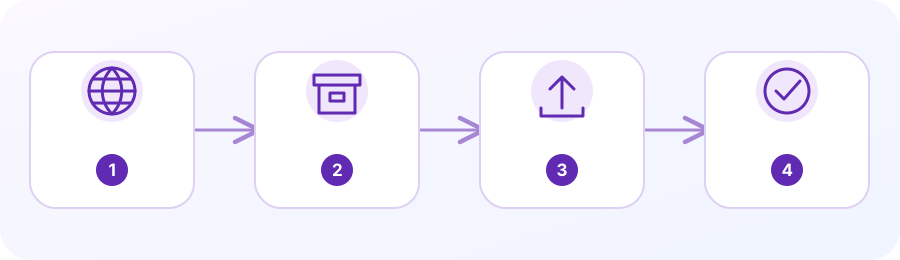
1. Open the intended document root
In cPanel, open File Manager and confirm the folder used by the correct domain. Do not assume every website uses the same public_html directory.
2. Back up the original
Download the file or create a tested backup before replacing, renaming or deleting live content.
3. Upload a file
Use Upload to choose the file, then return to the intended directory. Confirm the filename and file type before overwriting an existing file.
4. Edit a text file
Select a suitable HTML, CSS or text file and choose Edit. Save, reload the website and check desktop and mobile presentation; use source control where available.
5. Check permissions and restore
Permissions govern file accessibility. Do not set public write permissions simply to fix an error. If something breaks, restore the known-good version and check logs.
Open the correct document root
In cPanel, open Domains and read the document root shown for the exact domain. The primary domain commonly uses public_html, but an additional domain can point to another directory. The document root is the folder from which the web server serves that site; editing a similarly named folder can change the wrong site or appear to do nothing.
In File Manager, use Settings to choose the home directory or the document root for the selected domain. Turn on Show Hidden Files (dotfiles) when you need to inspect items such as .htaccess or application configuration. Hidden files can control routing and access, so do not delete or overwrite one unless you know why it exists.
Upload or replace files
Before replacing a live file, download the current version or make a backup through the provider’s approved process. Confirm the exact filename, extension, capitalization and destination. cPanel File Manager uploads individual files; to move a directory, upload a compressed archive and use Extract if the host enables that feature. After extraction, check that the files are in the intended folder rather than nested one level too deep.
Upload a test or new file before removing the old version when possible. Do not upload credential files or database dumps into a publicly served directory. If the file belongs to a Git-controlled repository or an automated release process, update it through that source workflow instead of editing the live copy in File Manager.
Editing, permissions and deletion
File Manager’s editor is suitable only for small text files and can have a size limit. If the encoding prompt appears, select the correct encoding; if a text file displays as symbols, abort without saving. For larger or important files, download and edit a local copy, review the diff, and upload only after checking the backup and target path.
Permissions decide who can read, write or execute a file. Do not set broad write access such as 0777 to silence an error; this can expose the site to unauthorized changes. Deletion may move items to Trash, but Empty Trash permanently removes them. Verify the selected item and keep a separate copy before deleting site or mail data.
Verify and undo a change
After an upload or edit, open the public URL in a private browser window and check both the intended page and nearby pages. If styles or images fail, inspect file paths and capitalization. If the page returns 403, 404 or 500, record the error and stop making unrelated changes; those statuses have different causes.
If the site breaks, restore the known-good file from the copy you made, then clear browser or CDN cache if applicable and retest. Keep a short record of the file, old and new versions, time and result. Ask the host for help with server permissions, account ownership or log access instead of changing permissions at random.
Questions people often ask
Is public_html always my website folder?
No. It is common for a primary domain, but another domain can have a separate document root. Verify it under Domains before editing.
Can I upload a folder directly?
File Manager commonly uploads individual files. A compressed archive may be uploaded and extracted if the provider has enabled that feature; otherwise use an approved FTP/SFTP or deployment method.
Planning a business service? Here is a relevant next step.
Explore website design options →Official cPanel references (third-party documentation):