
Connect and manage a domain
Use Domains to connect domain names to hosting. Registering, renewing and controlling public DNS are separate responsibilities.
Use Domains to connect domain names to hosting. Registering, renewing and controlling public DNS are separate responsibilities.
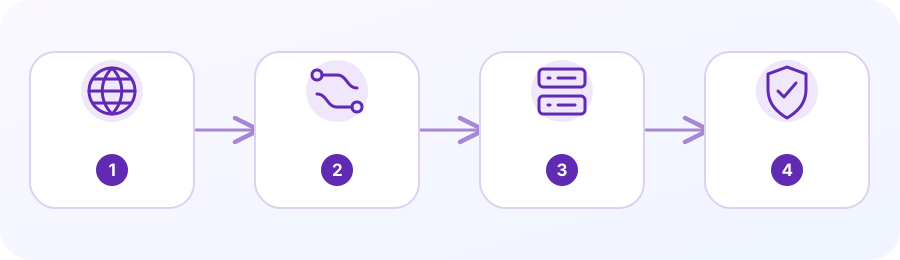
1. Confirm registrar and hosting
Check who owns the domain registration, its renewal, the authoritative DNS provider and the cPanel account intended to host the website.
2. Open Domains
In cPanel, choose Domains. Review the existing domain list, primary domain and document root before adding or modifying anything.
3. Add a domain only when permitted
Use Create A New Domain if included in the plan. Choose the correct site folder and do not accidentally point two unrelated sites to the same content.
4. Point DNS from the authoritative service
Update public records where the nameservers actually delegate DNS, which may be Cloudflare or another provider. A domain appearing in cPanel is not proof public DNS points correctly.
5. Protect mail while updating website DNS
Avoid changing MX/SPF/DKIM/DMARC records without inventorying active senders and mailbox delivery. Check HTTPS and web/mail behavior after any approved change.
Separate registration, DNS, hosting and mail
A domain registration gives control of a name for a period; it does not automatically host a website or mailbox. The registrar manages renewal and nameserver delegation. The authoritative DNS provider publishes records such as A/AAAA, CNAME and MX. The hosting provider serves site files, while email may be hosted on that same account or elsewhere. Identify each provider before editing a domain.
In cPanel, Domains can show which domains are attached to the hosting account and the document root used for each. Adding a domain in cPanel does not automatically transfer its registration or guarantee that public DNS points to this server. Confirm that the intended account has the domain and that the hosting plan allows it before changing records.
Connect a domain to website hosting
If the domain uses external nameservers, make DNS changes at the authoritative DNS provider, not necessarily in cPanel’s Zone Editor. If it uses the hosting provider’s nameservers, the provider may manage the zone through cPanel. Confirm the current nameservers and host instructions first. An A record typically points a hostname to an IPv4 address; a CNAME points one hostname to another name. Do not guess values.
Check both the root domain and the www hostname. They may use separate records or a redirect. The domain’s cPanel document root must contain the intended website files, and any application or proxy setting can affect how requests are served. After a DNS change, test from more than one network and allow time for resolver caches to update.
Keep email records intact
MX records route incoming email. SPF, DKIM and DMARC publish email sender policies and authentication information. Changing nameservers, replacing a DNS zone or copying a website template can remove these records and interrupt mail even when the website still loads. Export or record the current DNS zone before a planned change and compare each mail record with the current email provider’s documented values.
Do not switch Email Routing to Local Mail Exchanger or Remote Mail Exchanger based on the domain name alone. The correct setting depends on where mailboxes are hosted and how the provider configured the server. If mail is external, changing cPanel mail routing may not fix it and may create a mismatch. Ask the mail or DNS provider to confirm the intended route.
Secure and verify the final setup
Once DNS points to the correct host and the domain is attached to the correct account, check SSL/TLS Status if the feature is available. Automatic certificates can require successful DNS validation and may exclude a hostname with an incorrect record or a conflicting CAA record. Ask the host to check the certificate rather than bypassing a browser warning.
Test the root and www versions over HTTP and HTTPS, confirm the intended page appears, verify that email can be sent and received, and check contact forms. If only one hostname fails, compare its DNS record, document root mapping, certificate coverage and redirect behavior. Keep a copy of the previous records until the change has been verified.
Questions people often ask
Does adding a domain in cPanel change who owns it?
No. Domain registration and renewal remain with the registrar. cPanel attaches a domain to a hosting account.
Can I replace all DNS records with the web host’s example?
Do not do that without checking every service. MX and email-authentication records may be required even if the website records look correct.
Planning a business service? Here is a relevant next step.
Explore domain options →Official cPanel references (third-party documentation):