
Solve a common hosting problem
A few checks can help narrow down website, email, domain and SSL problems before contacting support.
A few checks can help narrow down website, email, domain and SSL problems before contacting support.
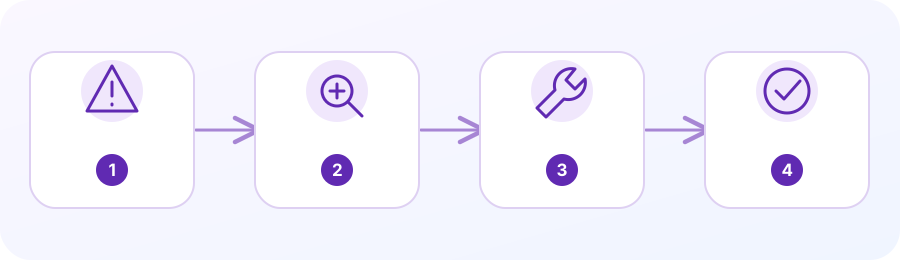
1. Website unavailable or 404
Confirm the exact URL and intended domain. Check DNS resolution, document root and whether the requested file or route exists. A 404 is not the same as a server outage.
2. Email not sending or arriving
Test sending and receiving separately. Check mailbox quota, webmail access, spam folders, account status and mail DNS; record the full non-sensitive error message.
3. SSL or security warning
Check the certificate status and whether the domain points to the correct server or proxy. Do not ignore certificate warnings or disable HTTPS to hide an issue.
4. Domain and DNS changes
Find where authoritative DNS is actually managed. When Cloudflare controls DNS, the cPanel Zone Editor may not control public records. Protect MX and other mail settings.
5. Before contacting support
Record the affected domain, approximate time, steps to reproduce and the exact non-sensitive error text. Never send passwords, session cookies or one-time codes.
Website does not load or shows an error
First capture the exact URL, time and full error. A 404 means the requested route or file was not found; it does not by itself prove the server is down. A 403 is commonly an access or permission issue, while a 500 indicates a server-side failure. Check the domain’s document root and whether the expected index file or route exists before uploading replacement files.
If the domain itself does not resolve, check which nameservers are authoritative and whether the expected A/AAAA records point to the hosting service. DNS changes can take time to appear across networks. Do not change nameservers or delete records just to test; save the current zone and contact the DNS provider if you do not know which records support email or other services.
Email is not arriving or sending
Test incoming and outgoing mail separately using an external address. For missing inbound mail, check the exact mailbox name, spam folder, storage quota and the domain’s MX routing. For sending problems, record the full bounce or error and test a small message without an attachment. The Email Deliverability interface can report some mail DNS configuration issues, but it cannot diagnose every recipient-side block.
If mail stopped after a domain or hosting change, verify whether the mail service is cPanel or an external provider and whether MX, SPF, DKIM and DMARC records still match that provider’s instructions. Do not copy mail DNS records from another domain. Ask the provider to check delivery logs using the send time and sender/recipient addresses, redacting private message content.
HTTPS warning or certificate error
Use SSL/TLS Status, if available, to inspect the certificate status for the exact domain and hostname. A certificate can cover the root domain but not a subdomain, or may be expired, pending validation, or excluded from automatic renewal. Confirm that the domain resolves to the intended hosting account and that no conflicting CAA record prevents the certificate authority from issuing a certificate.
Do not disable browser security warnings to make a site appear fixed. Ask the hosting provider to review AutoSSL status, DNS validation and the server configuration. After the provider confirms renewal, test both the root and www hostname over HTTPS and check redirects and mixed-content warnings separately.
Prepare a useful support request
Record the affected domain or mailbox, the exact steps, the timestamp with timezone, the error text and whether the issue affects one device or more than one. Say what changed recently, such as a DNS update, file upload, password change or mail migration. Include a redacted screenshot or message header only when it helps explain the symptom.
Do not send passwords, one-time codes, private email content, customer records or database exports. Ask the correct party: hosting for server and cPanel errors, the registrar for domain ownership/renewal, DNS provider for records, and the mail provider for delivery. If ownership is uncertain, ask the hosting provider to identify the responsible service before changing anything.
Questions people often ask
Should I change DNS to fix a website problem?
Only after confirming the authoritative DNS provider and the intended target values. Record the current zone first; mail and verification services may depend on records unrelated to the website.
What details help support diagnose the issue?
The public domain or mailbox, timestamp, exact error, steps to reproduce and recent changes. Never include passwords, codes or private customer data.
Planning a business service? Here is a relevant next step.
Ask OnHypp about a relevant service →Official cPanel references (third-party documentation):